Window Server Active Directory Implementation
Tools use for the LAB
Windows Server and Desktops
The installation of Windows Server and Desktops in VMware is complete. This section focuses primarily on Active Directory.
Active Directory
I have already created a domain name "mycompany.com"
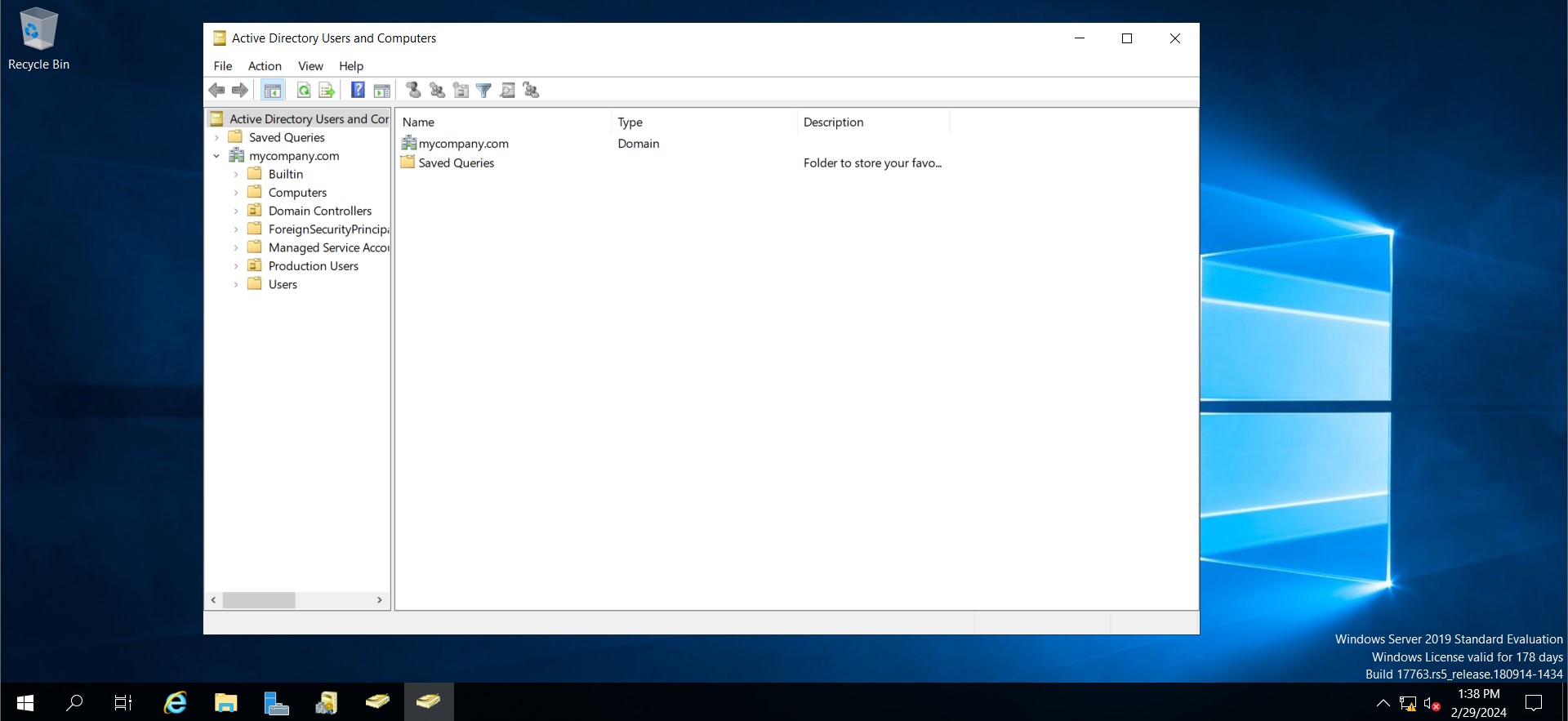
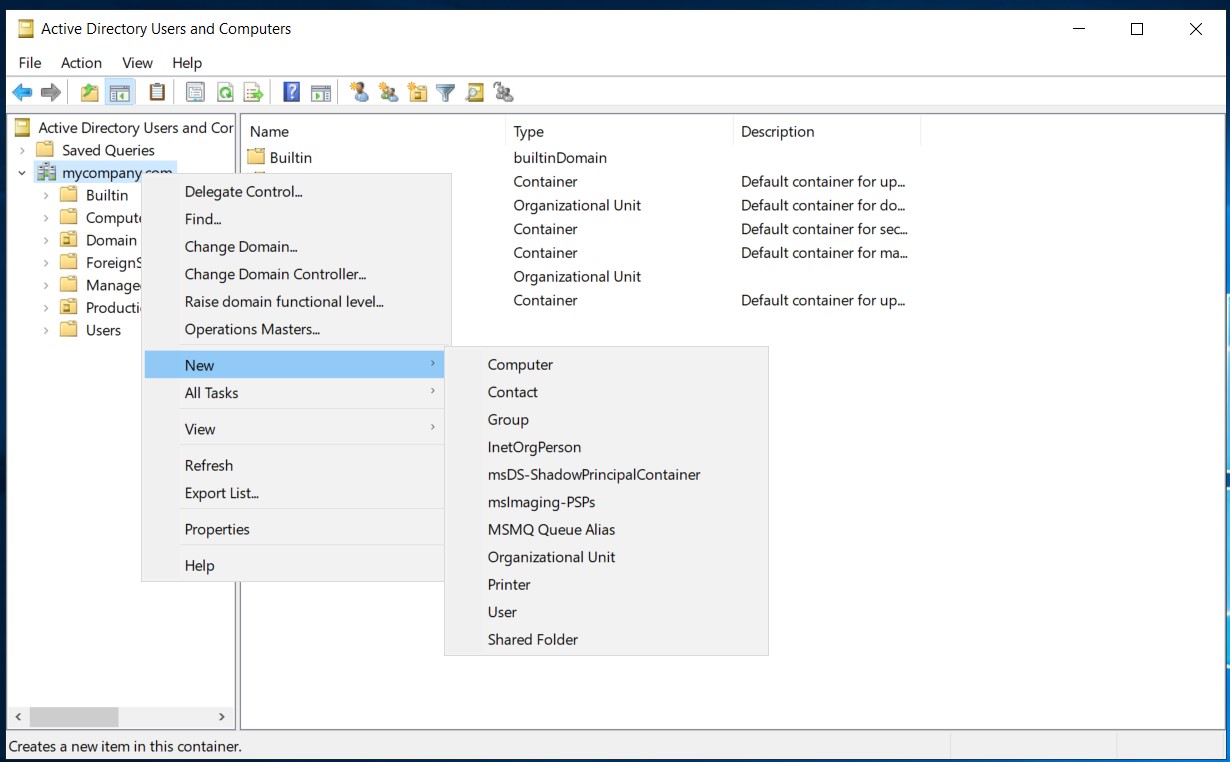
Now for creating a Organizational Unit or OU right click the domain "mycompany.com" > New > Organizational Unit. Create the name of your OU. It will appear under of your domain in my case is Production Users.
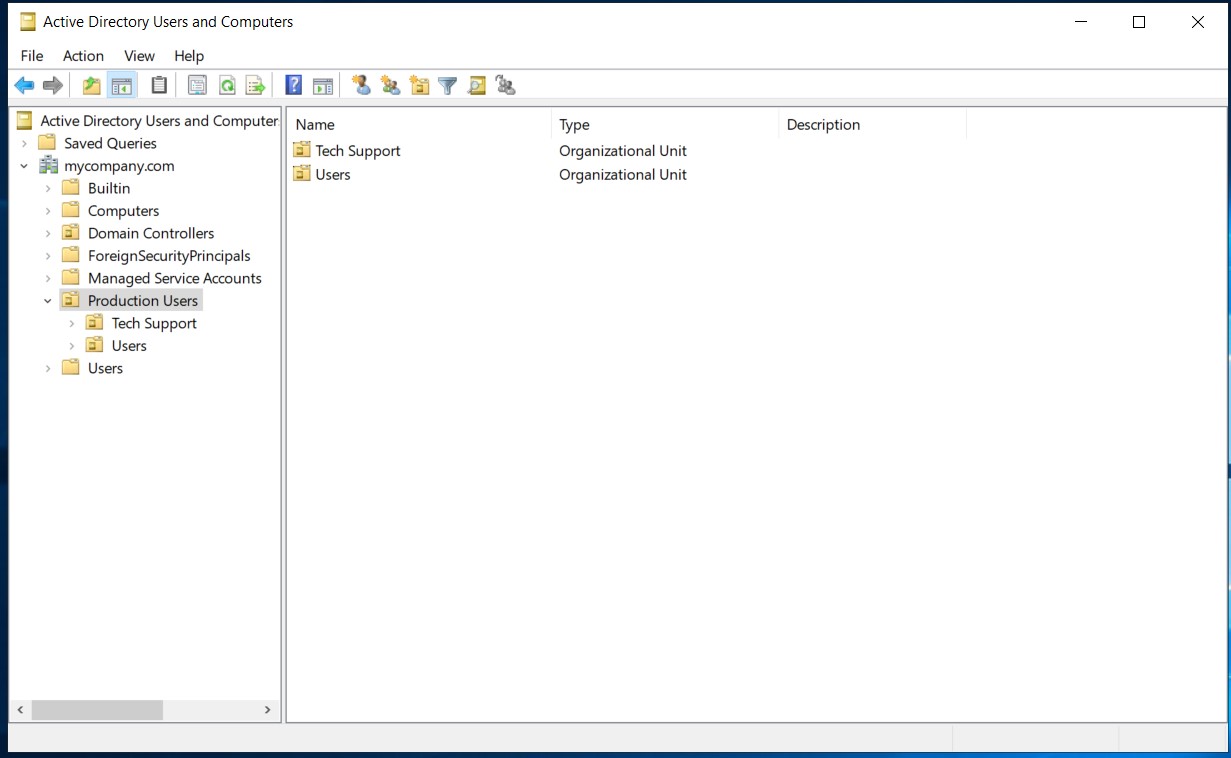
It can also create a Organizational Unit under of a OU
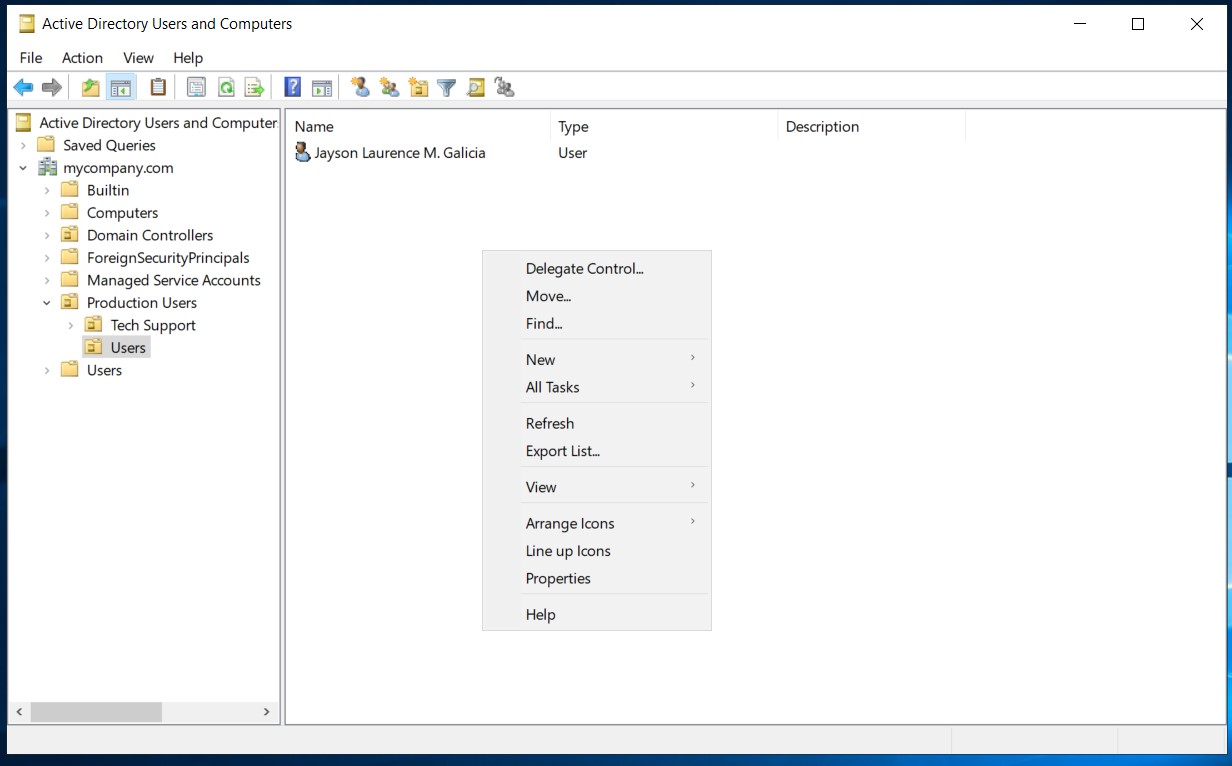
Creating User with Active Directory
When creating user right click in the black space or in the OU > New > User
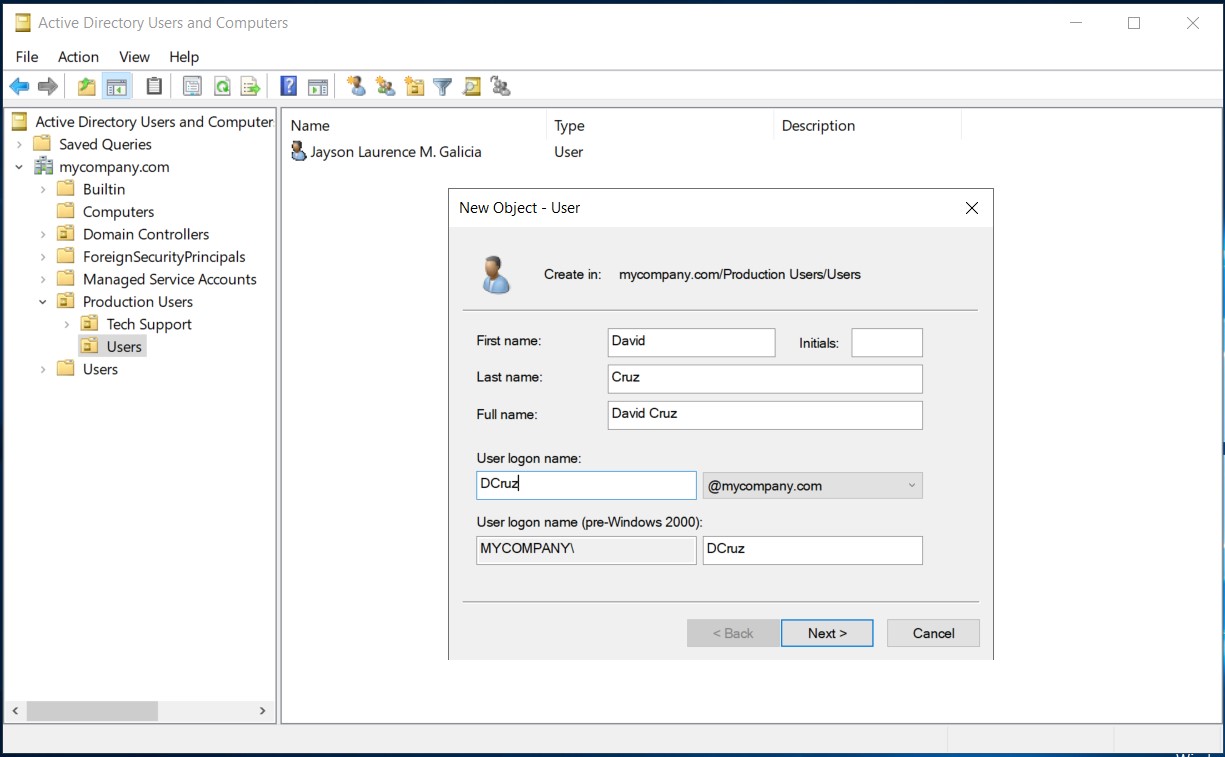
In this section fill up the necessary information, the user logon name will be use for logging in the account.
It can set a temporary password and prompt the user to create their own password or make it permanent or disabled. However, when creating passwords, they must meet certain requirements, which can be changed in policies.
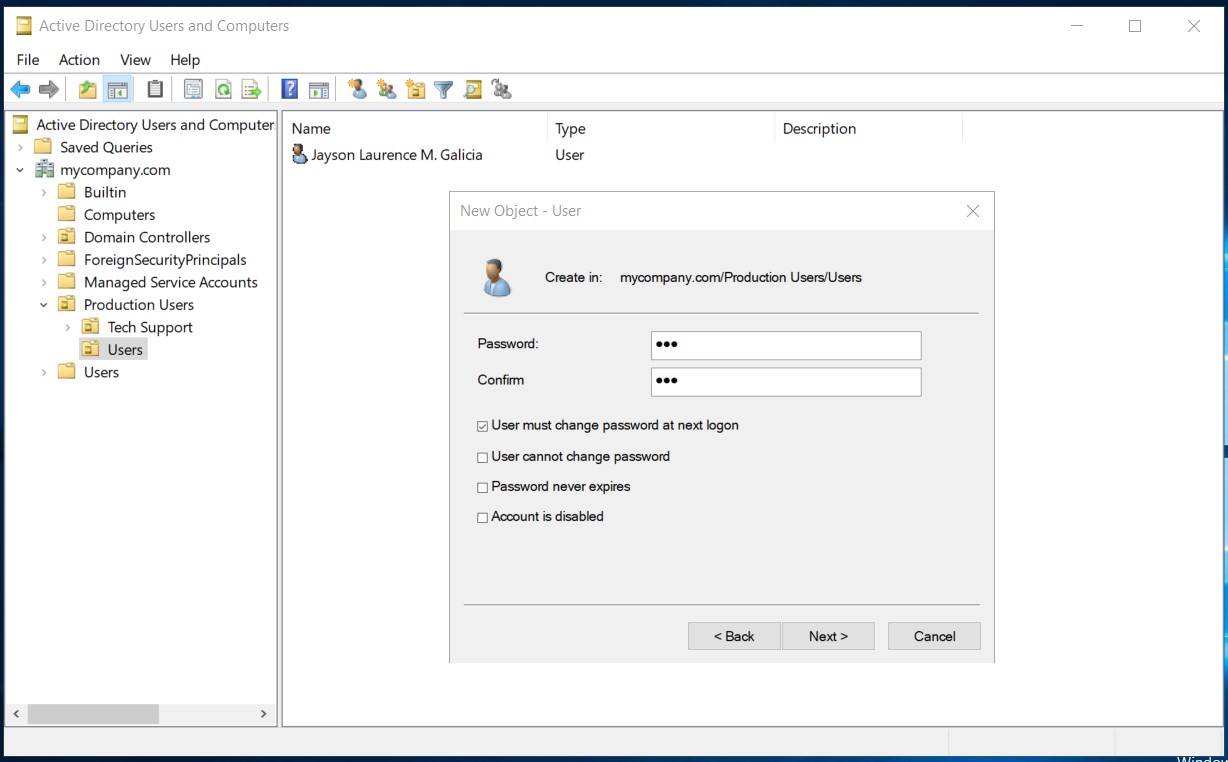
Joining and Signing to Domain
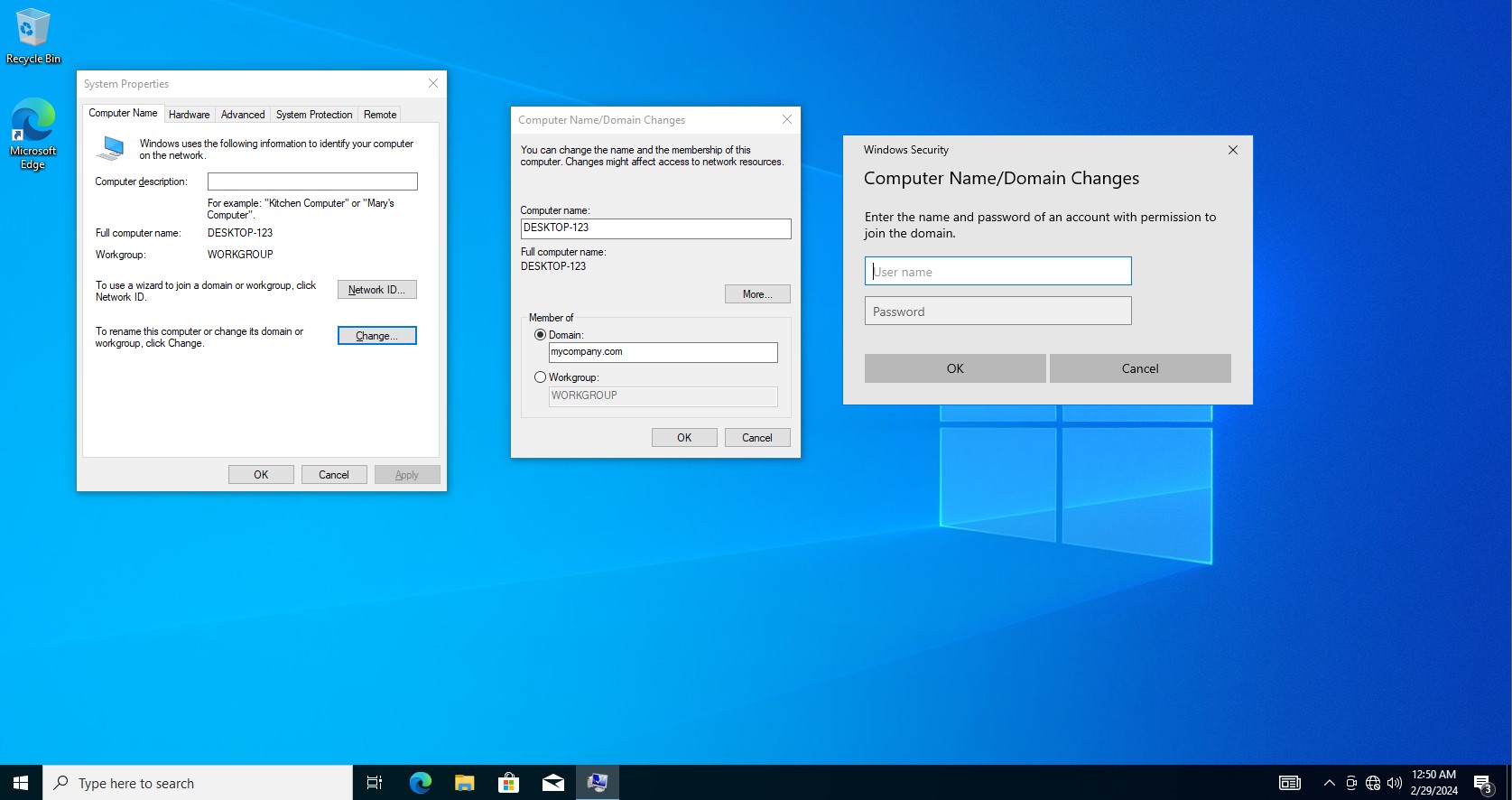
In system properties, join the Desktop to the domain. Different accounts have different privileges; normal user accounts can't make changes. After signing in, the desktop is required to restart.
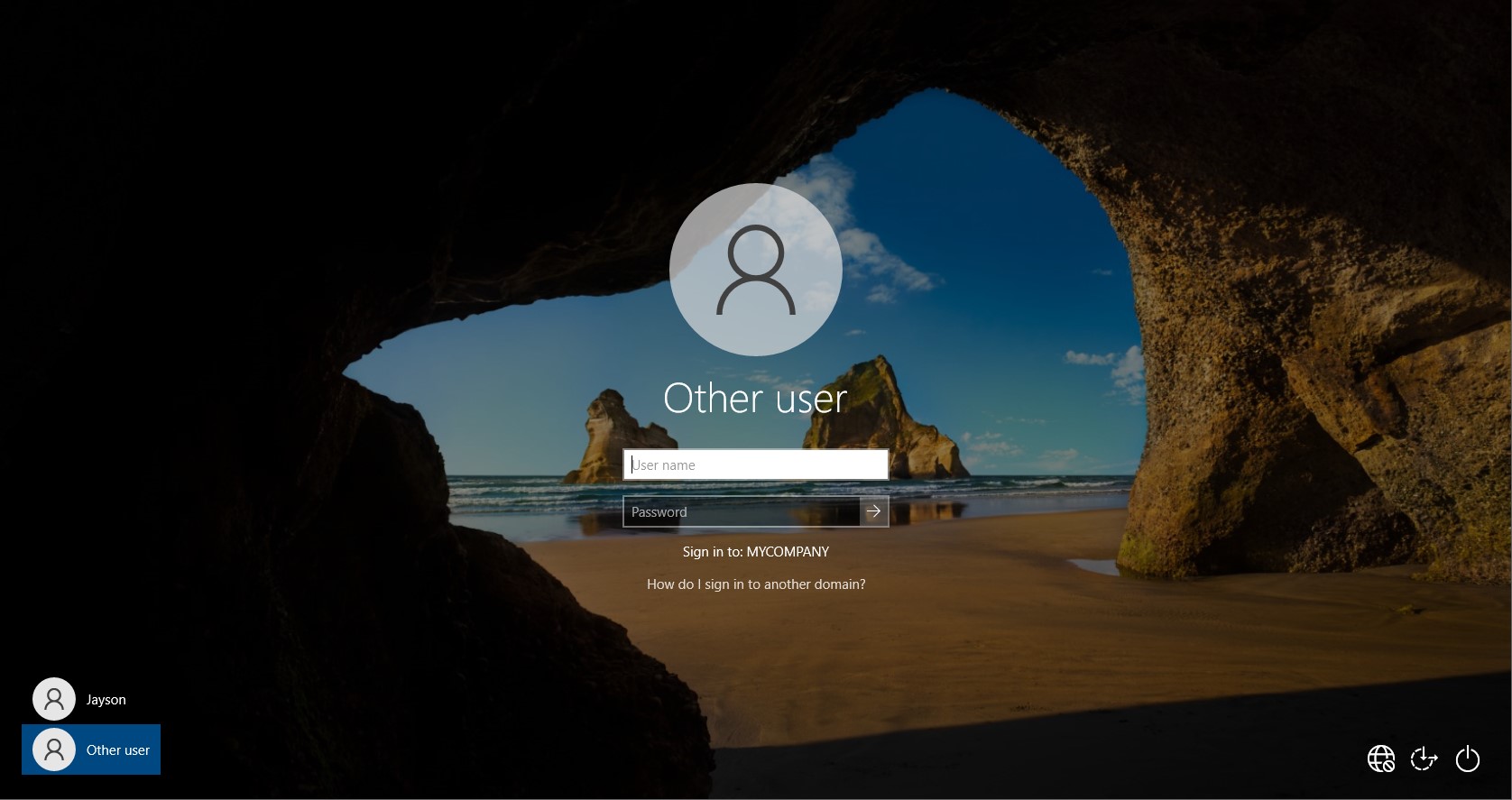
After restarting, the user created in Active Directory can sign into its own account.
We tick the box "User must change the password at next logon" when creating the account; it depends on the company's requirements as they have different password requirements.
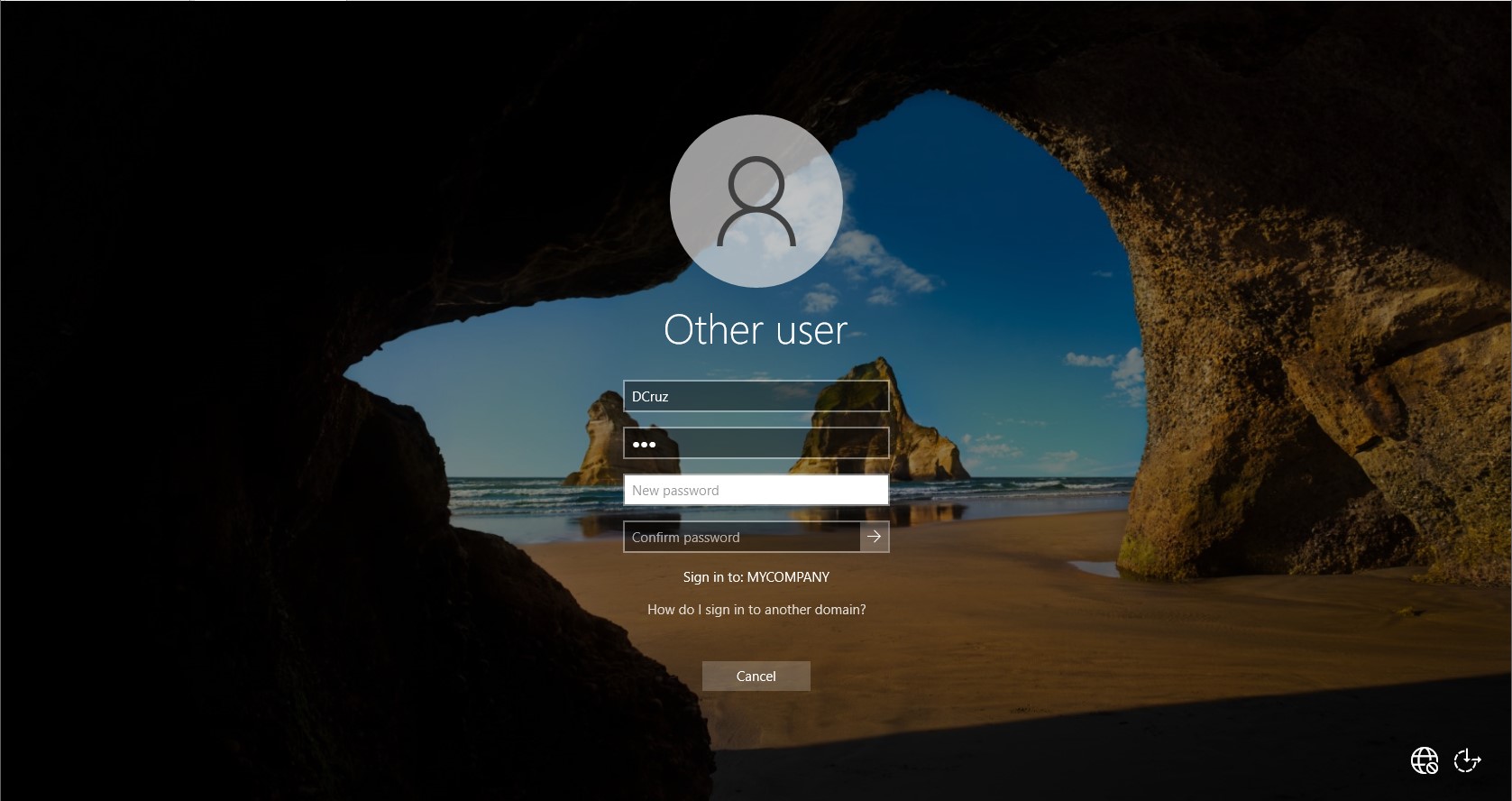
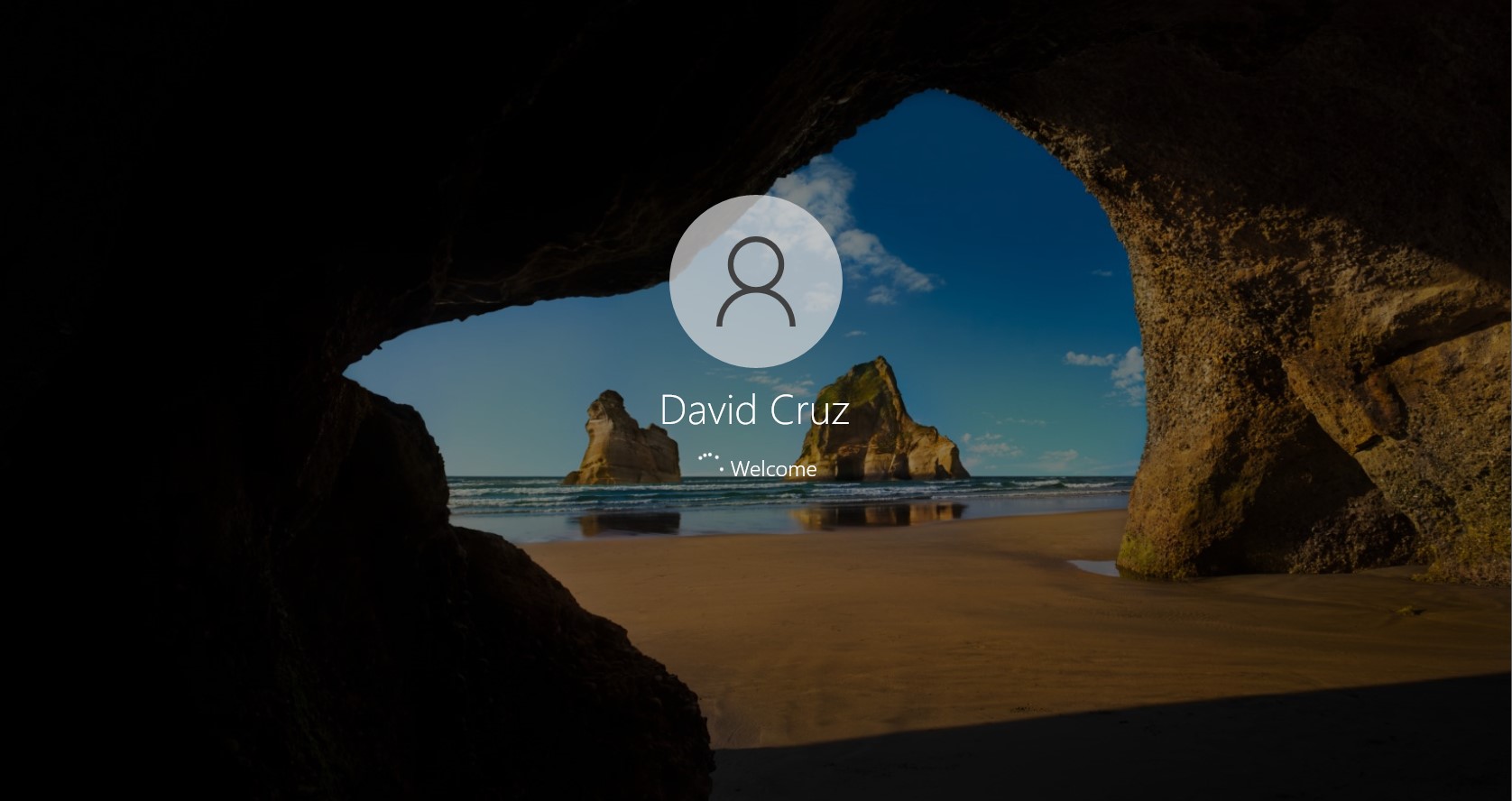
Now, David Cruz is logging into his account after it was created in Active Directory.
Reseting the Password
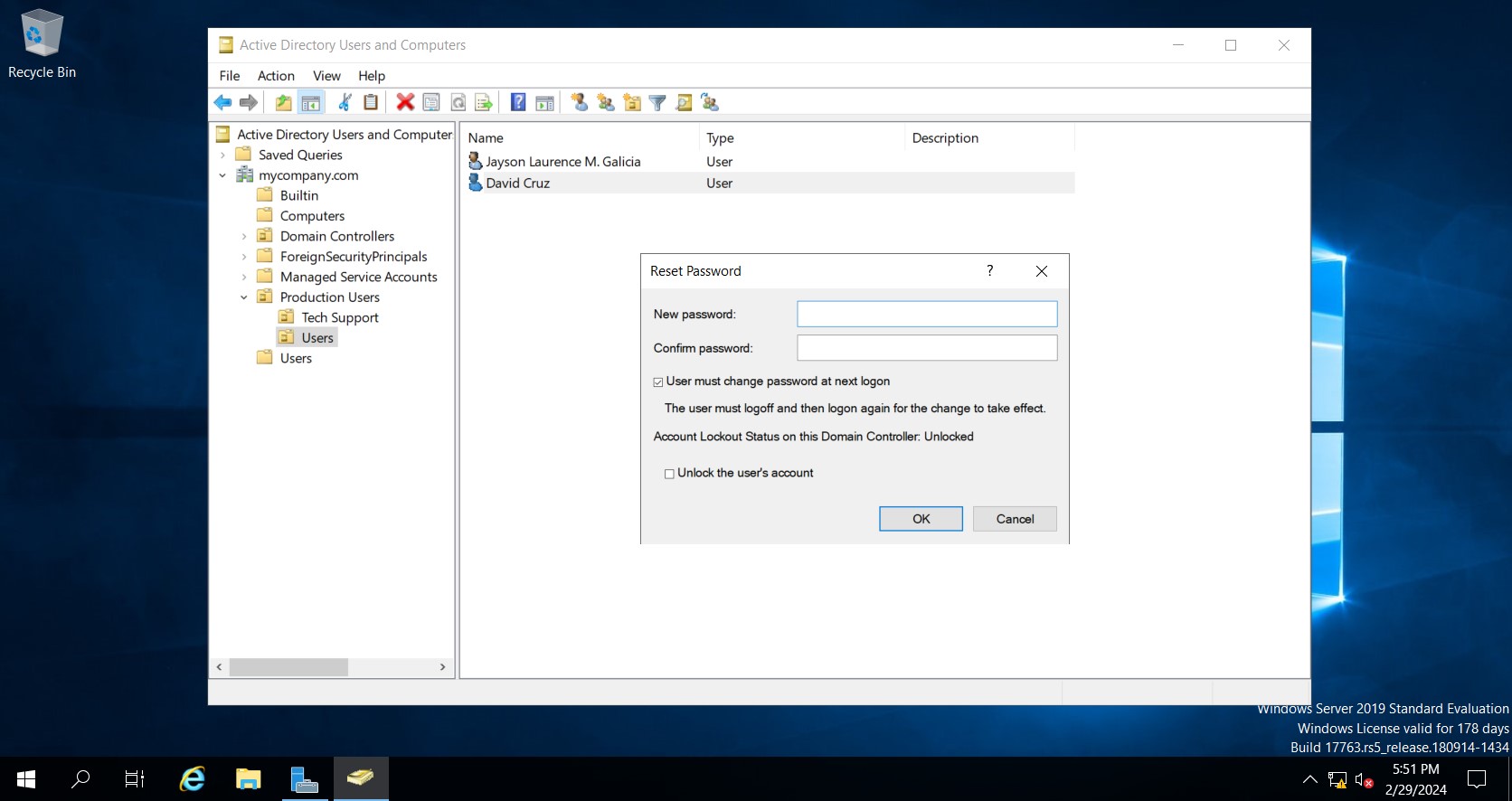
- David Cruz has forgotten his password, so we need to reset it for him.
- In Active Directory right click the user > Reset Password. Recommended method is to tick the box "User must change password at next logon".
- The new password will take effect on the next logon.